Webflow SEO: Guide for B2B and SaaS Teams
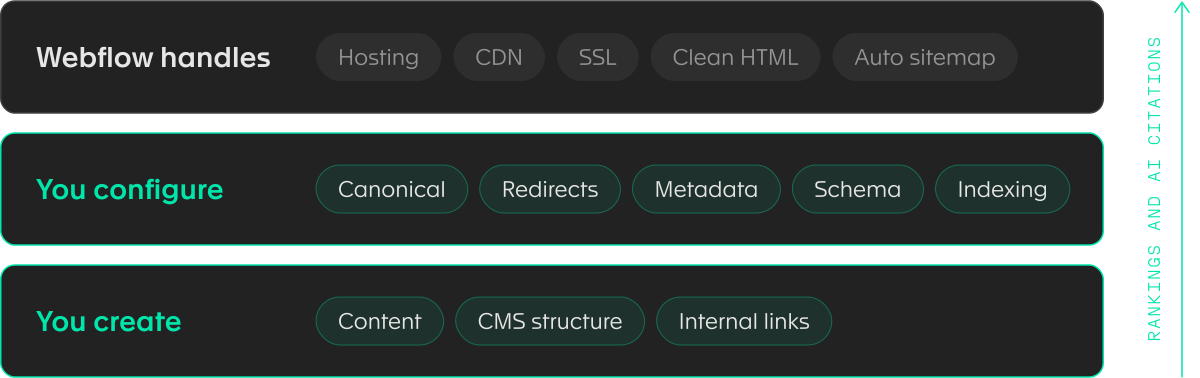
Webflow SEO comes down to three things, i.e. what Webflow already handles for you, the settings you configure once, and the content and CMS structure you keep building every month. Webflow covers hosting, SSL and a self-updating sitemap without any work on your side, but the other two layers decide whether the site ranks, and they're the ones people often put off.
What Is Webflow SEO?
Webflow SEO is all the work of getting a site built and hosted on Webflow to rank in search engines and get cited in AI answers. It combines the technical features Webflow ships with, the settings you configure yourself, a CMS structure that matches search intent, and content written for a specific buyer.
The difference from SEO on WordPress is the missing plugin layer. On WordPress, you'd install Yoast or Rank Math and manage half your SEO through it. On Webflow, the same controls are in the product itself, which means fewer moving parts and no plugin updates breaking your meta tags overnight. The trade is that you can't bolt on a feature Webflow doesn't offer, so some jobs (schema at scale, rank tracking, bulk audits) need an app, a script, or an outside tool.
Webflow SEO settings are in three places:
- Site settings hold everything that applies site-wide: the sitemap, the global canonical tag, robots.txt, indexing controls, and 301 redirects.
- Page settings hold the per-page fields: title tag, meta description, slug, Open Graph image, and a schema markup field.
- Designer is where the on-page work happens, meaning heading levels, image alt text and internal links.
Is Webflow Good for SEO?
Webflow is good for SEO on B2B or SaaS company pages, such as marketing pages, a blog, comparison pages, and resources. It removes the technical chores that eat time on other platforms, but it does nothing for a site with weak structure or thin content, and those cause far more ranking problems than hosting does.
The question whether Webflow is good for SEO comes up first for teams leaving WordPress, where plugins handle jobs that Webflow now does natively. Here's how the split works.
What Webflow Handles Natively
Webflow hosts every site on a CDN with automatic SSL, so you never configure a server, renew a certificate or pick a caching plugin. The sitemap.xml file generates itself and updates each time you publish, and Webflow adds the address to your robots.txt file automatically.
Every static page and every CMS template has editable fields for the title tag, meta description, slug and Open Graph image. There's also a native 301 redirect manager in Site settings with support for wildcard rules, which matters the first time you restructure a blog folder.
None of this needs a plugin, a developer ticket or a monthly fee on top of the Webflow site plan.
Where Webflow Needs Help
The plugin ecosystem is the obvious gap. A WordPress site can add a feature in five minutes by installing something, and Webflow can't, which is the main trade-off in the Webflow vs. WordPress comparison. Webflow Apps fill part of that gap, but the catalog is smaller.
Schema markup doesn't happen by itself. Webflow won't add Article, Organization or Product structured data unless you write it, generate it with Webflow AI in Page settings, or template it into CMS pages with custom code.
The CMS has item limits per plan, so a large programmatic page set needs planning before the first collection gets built. Also, keyword research, writing and link building are still entirely your job.
How to Set Up Webflow SEO Settings
Setting up Webflow SEO settings takes seven steps, and you can finish all of them in a day on a site with a few dozen pages:
- Turn on the auto-generated sitemap in Site settings > SEO.
- Set a global canonical URL that matches your primary domain, including www if you use it.
- Check Indexing: staging subdomain blocked, search engine crawlers and AI bots allowed.
- Write a unique title tag and meta description for every static page.
- Map the SEO fields in every CMS template to collection fields.
- Add a 301 redirect for every URL that has changed.
- Publish the site, then submit the sitemap in Google Search Console.
Steps 1 to 3 happen once. Steps 4 to 6 repeat every time someone adds a page or changes a slug.
Site-Level Settings
The sitemap is in Site settings > SEO > Sitemap, behind the Auto-generate toggle. Once it's on, Webflow rebuilds the file at every publish and lists the sitemap.xml address in robots.txt for you. If you run Webflow Localization, the auto-generated sitemap also carries hreflang tags for every static and dynamic page, so Google can match each language version to its audience without you writing those tags by hand.
The global canonical tag is a single field where you enter your base URL. Webflow appends each page's slug to it and writes a self-referencing canonical on every page. If your default domain uses www, the canonical has to include www as well, since a mismatch points every page at a version of the site that redirects.
Keep in mind the following if you use Google Tag Manager: if a canonical tag is already injected through GTM, setting a global canonical in Webflow too creates two canonical tags per page, and search engines may ignore both.
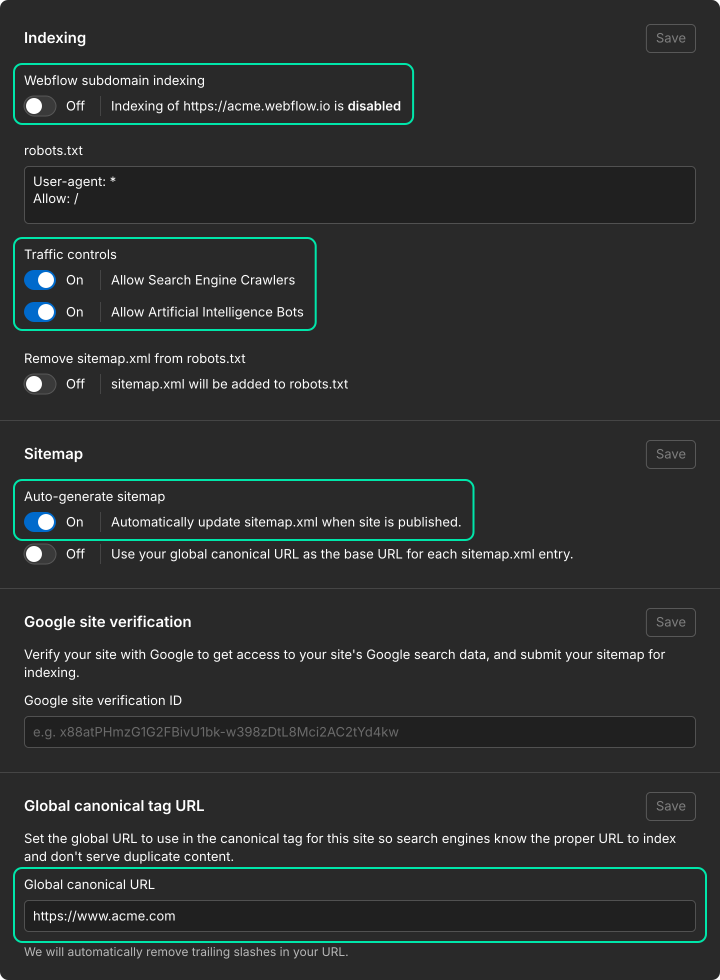
Robots.txt sits in the Indexing section of the same tab. You can write rules by hand, or use the Traffic control toggles, which generate robots.txt rules for two groups:
- Search engine crawlers (Googlebot, Bingbot, OAI-SearchBot and others)
- AI bots (GPTBot, ClaudeBot, PerplexityBot and others)
Both groups are allowed by default. The Webflow subdomain indexing toggle (Staging indexing in Webflow's Help Center) is the one to switch off on day one, because it keeps your webflow.io subdomain out of Google so the staging copy never competes with the live site.
Page-Level Settings
Static pages get their title tag, meta description and slug in Page settings > SEO settings. Each title should be unique and under 60 characters, each meta description should describe the page in about 150 characters, and each slug should be short enough to read aloud.
CMS templates work differently, and they're where metadata goes missing on the sites we audit. The template's SEO settings let you insert collection fields into the title and meta description, so every blog post or comparison page outputs its own. Give each collection dedicated "SEO title" and "Meta description" fields instead of reusing the post name and summary. Editors then write metadata on purpose, and a 90-character headline doesn't get truncated into a title tag.
The Sitemap indexing toggle in Page settings takes a page out of the sitemap and adds a noindex tag to it. That's the right setting for thank-you pages, gated asset confirmations and internal landing pages that exist only for paid campaigns.
Redirects and the 301 Panel
Redirects are in Site settings > Publishing > 301 redirects, where you enter the old path, the new path and then publish. A redirect does nothing until the next publish, so a redirect that "doesn't work" is worth checking against the last publish time before you rewrite the rule.
Folder moves don't need one rule per page. A capture group in the old path, such as /blog/(.*), with %1 in the new path, such as /insights/%1, moves the whole folder in one line, and Webflow recommends wildcard rules like this to keep the total rule count low. For a migration, you can import redirects from a CSV file of up to 16 MB and export the current list the same way.
Chained redirects are the setup that costs rankings, since each extra hop slows the crawl down, and the CSV export of your Webflow 301 redirects is the fastest way to spot a chain.
How to Structure the Webflow CMS for Search
The CMS is where Webflow SEO gets won or lost, because the collection structure decides your URL folders, your page templates, and how internal links flow between pages. A site with good settings and a messy CMS will plateau, while a clean CMS keeps paying off with every page added.
Map One Collection to One Search Intent
Each collection should serve one kind of search, for example:
- Insights collection answers informational questions.
- Comparisons collection handles commercial queries like "X vs Y".
- Use Cases or Integrations collection catches bottom-of-funnel searches from buyers who already know what they need.
One collection per intent means one template per intent, so every page in it shares the same heading pattern, schema type and call to action. Here's how that plays out on a SaaS site.
A /compare collection gets a template with a verdict paragraph at the top, a comparison table, a "which one fits" section and a demo CTA. Every new competitor page is a CMS item that fills those fields, so the tenth comparison page is as well structured as the first, and nobody has to rebuild the layout in the Designer.
Build Topic Clusters With Reference Fields
Add a reference field called “Pillar” to your article collection and point it at the hub, which has to be a CMS item itself, either in its own Pillars collection or in the same collection as the articles. The article template can then show a “Part of” link built from the referenced hub’s name and URL.
On the hub template, a Collection List of articles filtered to “Pillar equals current item” lists every article in the cluster. New articles join the cluster as soon as an editor picks the pillar, so the hub-and-spoke links stay complete even when nobody remembers to add them. Links between articles inside the body copy are still added by hand.
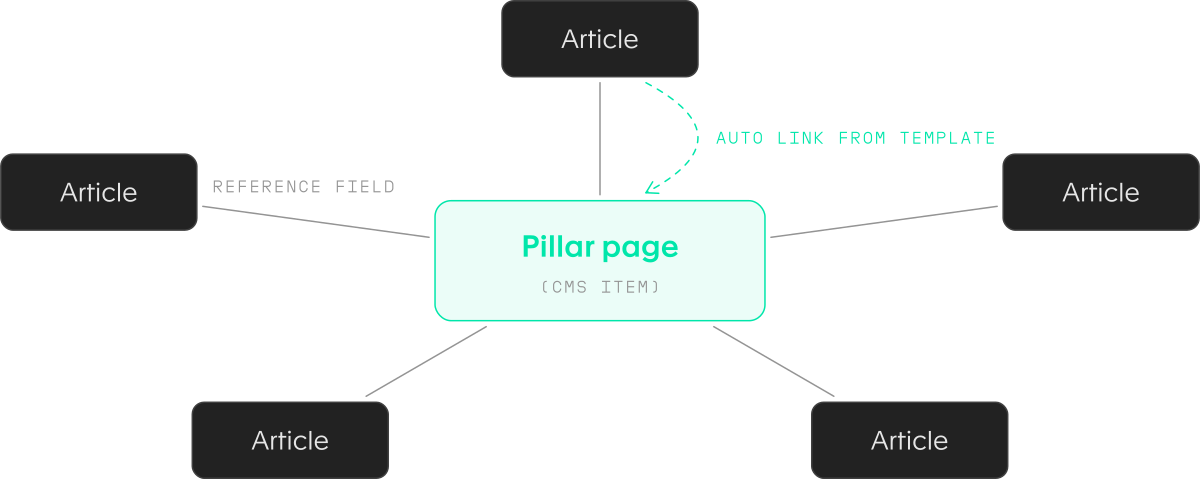
This page is an example. It's at the center of a cluster of Webflow SEO articles, and each of them links back here, which tells Google which page answers the broad question and which pages answer the narrow ones.
Scale With Programmatic Pages
One template plus one collection can generate hundreds of pages, which is how SaaS sites build integration directories, location pages or glossary entries. It works when each item carries data that's unique to it, such as a specific integration's setup steps, supported features and pricing. It fails when the items are the same paragraph with a different noun swapped in, because Google treats those as thin or duplicate pages.
Field design matters more than the template in programmatic SEO in Webflow, because the unique fields are what make each generated page worth indexing.
Know Your Plan's CMS Limits
Webflow plans and pricing changed on May 13, 2026, and the change matters for SEO. The CMS and Business site plans were replaced by a single Premium site plan with 20,000 CMS items, 40 collections and 300 static pages. The Basic site plan stays at 300 static pages with no CMS.
For a B2B content program, 20,000 items is a lot of room. The old CMS site plan capped you at 2,000, which a blog with authors, categories and tags could hit faster than expected.
Also, bandwidth, seats, and form limits differ across Webflow site plans and pricing, and sites that need more than 20,000 items or custom limits move to Webflow Enterprise plans. Plan details change, so make sure to check them out before you commit to a content plan that depends on a limit.
Technical SEO on Webflow
Technical SEO on Webflow is a smaller job than on a self-hosted CMS, because Webflow runs the servers, the CDN, and the SSL. What's left is what you add to the page yourself, such as images, scripts, fonts, and structured data.
Core Web Vitals on Webflow Hosting
The usual causes of a poor Core Web Vitals score on a Webflow site are oversized images, a pile of third-party scripts in custom code, heavy interactions above the fold, and too many font weights. Each one is fixable without touching hosting:
- Oversized images: Resize and compress images before upload. A hero image exported straight from a design file at full resolution is the first thing we check when Largest Contentful Paint is slow. Keep lazy loading on for images below the fold, and turn it off for the hero image so it loads first.
- Heavy interactions above the fold: Avoid page-load animations that keep the hero hidden until a script starts them, such as a fade-in from 0% opacity. A hidden element can't count as the largest paint, so the animation delays Largest Contentful Paint.
- Third-party scripts in custom code: Open Site settings > Custom code every quarter and remove scripts nobody can explain. Old chat widgets, abandoned heatmap tools and duplicate analytics tags pile up over two or three years of marketing campaigns.
- Too many font weights: Load two font weights instead of six if the design allows it.
Schema Markup in Webflow
Page settings include a schema markup field that accepts JSON-LD you write, or generates it with Webflow AI. Put each schema block in one place only. If the same Article schema sits in the schema field and in custom code, the page outputs it twice and the two can conflict.
CMS templates need dynamic schema, so every item outputs its own values. Paste JSON-LD into the template’s schema markup field in Page settings, then use Add Field to insert collection fields where the values go. That includes fields from referenced items, so an Author reference field fills in each post’s author name. A blog template set up this way outputs correct Article schema for every post, including ones published years from now.
1<script type="application/ld+json">
2{
3  "@context": "https://schema.org",
4  "@type": "Article",
5  "headline": "{{Name}}",
6  "description": "{{Summary}}",
7  "image": "{{Main Image}}",
8  "author": {
9    "@type": "Person",
10    "name": "{{Author}}"
11  },
12  "datePublished": "{{Published On}}",
13  "dateModified": "{{Updated On}}",
14  "publisher": {
15    "@type": "Organization",
16    "name": "Your Company"
17  }
18}
19</script>
The schema types worth adding on a B2B site are Article, Organization, Person for authors, and BreadcrumbList. They help search engines and AI systems connect a page to the company and the person behind it. They don't guarantee a rich result, and FAQ rich results no longer appear in Google at all, so an FAQ section on the page is there for readers.
Accessibility
Several accessibility fixes do double duty for search. A clean heading order (one H1, H2s, then H3s, no skipped levels) helps screen reader users jump through the page and helps search engines understand its structure.
Descriptive link text tells both a screen reader and a crawler where the link goes. Alt text describes an image to someone who can't see it, and to a search engine that can't either.
Webflow's Audit panel flags some of this, but color contrast, focus order and form labels still need a manual pass, and that pass is where accessibility in Webflow takes real time.
Webflow SEO for AI Search
There's no separate AI ranking system to optimize a Webflow site for. Google states that SEO fundamentals stay relevant for AI Overviews and AI Mode, and that there are no additional requirements to appear in them. A Webflow page that's crawlable, indexed, and clearly written is already eligible.
The checklist for AI features is short:
- Crawling has to be allowed in robots.txt and by your CDN or hosting
- Content has to be findable through internal links
- Page experience has to be good
- Important content has to be in text form
For Webflow GEO strategy, that means four things:
- Keep the search engine crawler and AI bot toggles switched on in Site settings > SEO > Indexing
- Put answers in HTML text rather than inside images, so a pricing table is a real table and a key statistic isn't baked into a graphic
- Answer each section's heading in its first paragraph, because that's the passage a retrieval system lifts
- Name things: write "the Webflow Premium plan" instead of "the plan", since a passage gets read on its own, without the paragraph before it
llms.txt, AI Bots, and the Audit Panel
Webflow lets you upload an llms.txt file in Site settings > SEO > LLMs.txt, as long as it's UTF-8 encoded and under 100 KB. Webflow serves it from your root domain and keeps it out of search indexes.
The AI bot toggle matters more than the file. When the AI bots group is switched off, Webflow asks crawlers like GPTBot and ClaudeBot not to crawl the site, which saves bandwidth and can also reduce your visibility in AI-powered search. Check it on any site that someone else set up.
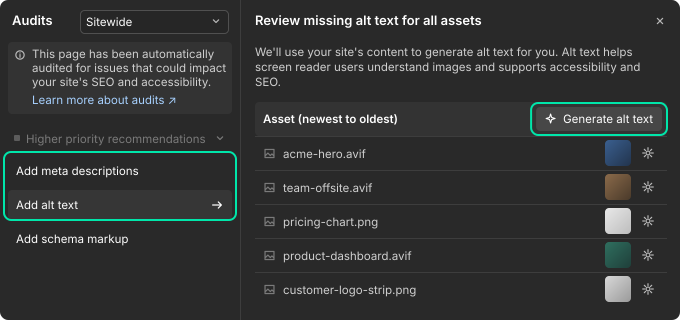
The Audit panel in the Designer flags missing alt text, page titles, meta descriptions, and schema markup, along with accessibility issues. With Webflow AI turned on, it can write the missing pieces for you, which uses Webflow AI credits and needs a paid Site or Workspace plan. Webflow's Audit panel guide lists what it checks. Review what it generates before you publish, since an AI-written meta description that's accurate but generic won't earn more clicks than the missing one would have.
How to Measure Webflow SEO
Webflow SEO for a B2B company should be measured in three numbers:
- Organic clicks
- Organic demo requests
- Organic pipeline
Rankings and impressions are early signals that the work is landing, but a sales team cares about the last two, and the report should too.
The setup has three parts. Search Console gives you queries, clicks, and indexing errors. GA4 gives you sessions and form events, and Webflow form submissions can be tracked as GA4 conversions. To connect Google Analytics to Webflow, you add the GA4 measurement ID in Site settings, then mark form submissions as key events in GA4. The third part is your CRM, where a hidden field on each Webflow form passes the traffic source into the lead record, so a deal can be traced back to the page that started it.
Group the report by CMS collection, since the collections already match search intent. Insights pages should drive impressions and newsletter sign-ups, comparison pages should drive demo requests, and if they don't, the problem is visible at a glance.
A cadence that works for a small team: a weekly five-minute Search Console check for indexing errors and sudden drops, a monthly report on clicks and conversions by collection, and a quarterly content review that decides what to update, merge or retire.
Migrating to Webflow Without Losing Rankings
A migration to Webflow keeps the rankings when every old URL has a destination and the metadata moves with the content. Traffic drops after a migration come from URLs that 404, titles that got reset to page names, and internal links still pointing at old paths.
The work starts while the old site is still live, because it's the only complete record of the original URLs. Crawl it and export every indexed URL, then map each one to its new path in a spreadsheet. Carry the title tags and meta descriptions over with the content, since a CMS import usually brings the body and leaves the metadata behind. Import the redirect map as a CSV, publish, and then watch Search Console's page indexing report and your 404 logs closely for the first few weeks.
Our work on Finmatics is a good example of how this plays out. Tunel Studio moved the site from HubSpot to Webflow, and within two months of launch it had 40% more organic clicks, a 75% higher click-through rate and twice the demo form submissions. The existing rankings carried over through the move, so the new pages built on them instead of starting from zero.
Rebuilds of established sites follow the same rules. Virtuo, an established service business, came out of the rebuild with 3x organic clicks and 39% more impressions. If a full rebuild is on the calendar, plan the URL structure and the CMS collections before design starts, because both are much harder to change once the Webflow development is underway.
Webflow SEO Checklist
Three things keep Webflow SEO running after launch:
- Checklist for every new page or site launch
- Small tool stack for monitoring
- Outside help once search engine optimization becomes a pipeline target instead of a side task
A Webflow SEO checklist covers settings, page fields, CMS templates, redirects and the checks to run in Search Console after a publish. It's worth running on an existing site as well as a new one, since settings drift as more people get access.
The tool stack can stay small. Search Console and GA4 are free and cover indexing, queries and conversions. Add a crawler to catch broken links and missing metadata across the whole site, and a rank tracker if you report positions. Paid Webflow SEO tools and Webflow Apps for schema and audits earn their cost once the free stack shows a problem it can't explain. For teams coming from WordPress, the closest thing to Yoast SEO for Webflow is the combination of Page settings fields and the Audit panel.
Outside help, i.e. an SEO agency, makes sense in three situations:
- Organic traffic has stayed flat after six months of steady publishing
- Website migration is on the calendar
- Content program needs growth strategy, writing, and Webflow build work at the same time
Conclusion
Webflow takes care of the first layer of SEO for you and hands you clean tools for the second. The third layer, the CMS structure and the content inside it, is where B2B sites on Webflow win or stall, and it's the one that gets the least planning.
If you set the site-level settings once, give every task an owner and report in the pipeline, the platform stops being the variable.
Does Webflow have SEO plugins like Yoast?
Webflow has no plugin system, so there's no Yoast to install. The fields Yoast adds to WordPress, such as title tags, meta descriptions, canonicals and sitemaps, are already built into Webflow's Site settings and Page settings. For extras like schema generation or site audits, Webflow Apps and the built-in Audit panel cover the gap.
Is Webflow or Framer better for SEO?
Webflow is the stronger choice for content-heavy B2B sites. Both platforms handle the technical basics, but Webflow's CMS, native 301 redirect manager with wildcards and Page settings schema field give you more control once a site grows past a few dozen pages. Framer is quicker for small, design-led sites, which is the main trade-off in the Webflow vs. Framer comparison.
Do I need a paid Webflow plan for SEO?
Yes, for any site you want to rank you need a paid Webflow plan. The free Starter plan publishes only to a webflow.io subdomain, so you can't connect your own domain. A paid Site plan adds the custom domain, CMS item indexing controls and the full set of Site settings, and the AI-powered Audit fixes also need a paid Site or Workspace plan.
Does Webflow index my staging site?
It can, unless you block it. Go to Site settings > SEO > Indexing, switch Webflow subdomain indexing off and publish. Webflow then serves a separate robots.txt on the webflow.io subdomain that asks search engines not to index it, so the staging copy doesn't compete with your live site in Google.
Is Webflow good for blogging?
Yes, especially for B2B content programs. A Webflow blog is a CMS collection with its own template, SEO fields and schema, so every post follows the same structure. The limits are the plan's CMS item cap and the lack of plugins for features like related posts, which reference fields and collection lists handle instead.
How long does Webflow SEO take to show results?
Webflow itself doesn't change the timeline. How fast pages rank depends on how quickly Google crawls them and how competitive the query is. You can speed up discovery by submitting your sitemap in Search Console after each major publish and requesting indexing for new pages, then judging results over months rather than weeks.


Your growth starts with one conversation.
No pitch deck. No pressure. A focused 30-minute call about where you are, where you want to be, and whether we're the right team to get you there.